
STM32CubeProgrammer Guide for Beginners
Dec 26, 2025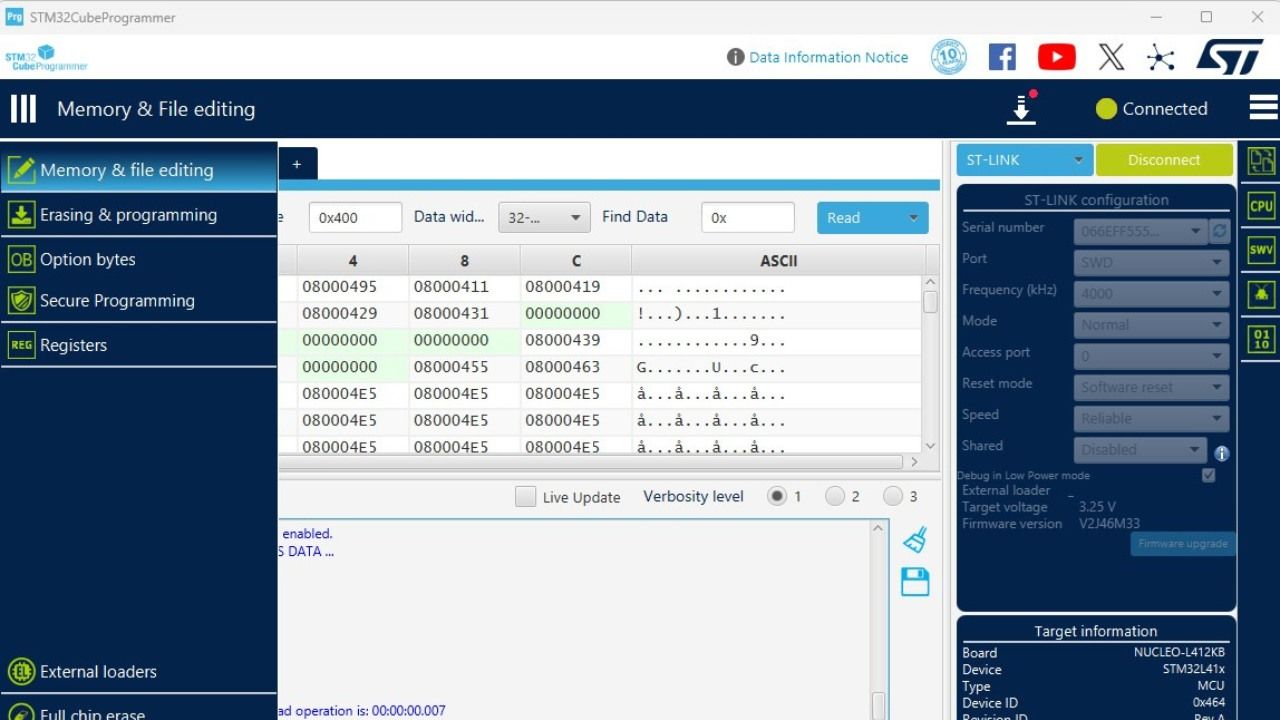
STM32CubeProgrammer is the official programming and debugging tool from STMicroelectronics for STM32 microcontrollers. Whether you are a beginner or an experienced developer, this tool lets you flash firmware, read and erase memory, configure the MCU, and debug STM32 MCUs easily.
In this guide, we will walk you through installing STM32CubeProgrammer and explain the essential features of this tool:
- Flashing/Erasing Firmware: flash your MCU with an *.elf or *.bin file
- Changing Option Bytes: configure boot options and read/write protections
- Reading registers: a powerful debugging tool
What is STM32CubeProgrammer?
STM32CubeProgrammer is a versatile software utility that allows you to program STM32 microcontrollers through multiple interfaces:
-
ST-LINK / SWD: Standard debugging and programming.
-
UART / RS232: Serial programming.
-
USB DFU: Device Firmware Upgrade for supported MCUs.
-
JTAG: For advanced debugging and flashing.
It is available for Windows, macOS, and Linux, making it accessible to almost every developer.
In addition to its primary purpose, it allows users to manage Flash memory, option bytes, and device security settings through a graphical interface or the command line. STM32CubeProgrammer is commonly used during development and production to load firmware, configure low-level options, and recover devices in case of misconfiguration.
Installation Guide
Step 1: Download STM32CubeProgrammer
Nowadays, you must create an account to download any STM32MicroElectronics tool. If no account, make one.
https://www.st.com/content/st_com/en.html
Then open the STM32CubeProgrammer link and scroll down. You will find buttons as shown in the image below. Get the one that suits your operating system. The license agreement page pops up: accept if you agree;)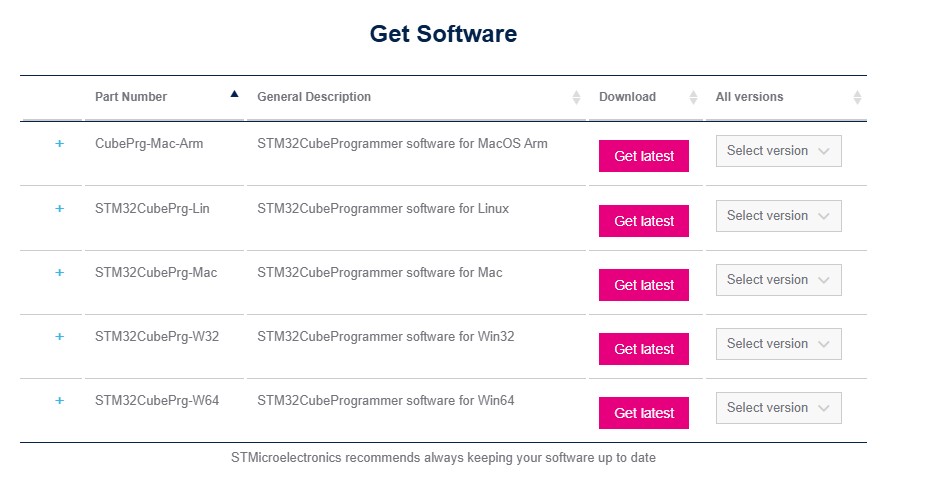
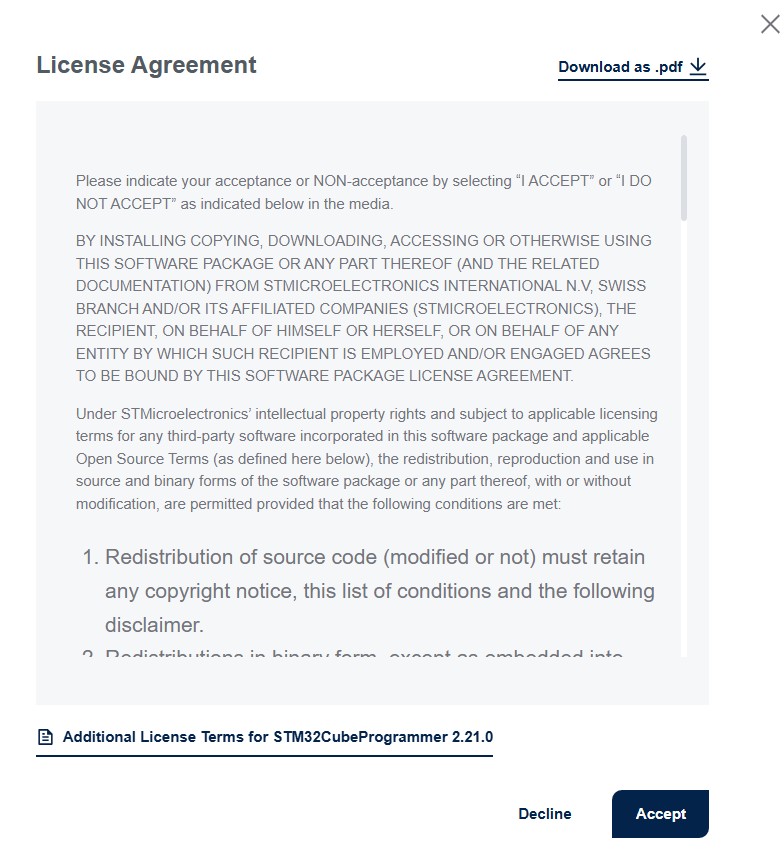
If you have already created an account and signed in, the download process will start immediately. Otherwise, create an account and log in.
Once the download completes, unzip the file and start the installation. The installation process is pretty simple: keep pressing Next. Along the way, it may prompt you to install the USB drivers. It is recommended to accept these prompts.
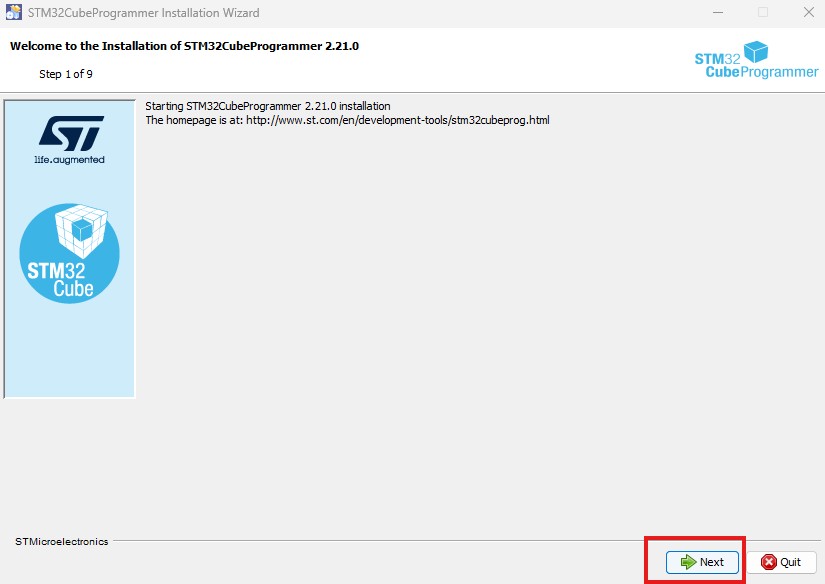
Step 2: Install the Software
-
On Windows, run the
.exeinstaller and follow the prompts. -
On macOS, open the
.dmgfile and drag the application to your Applications folder. -
On Linux, extract the
.tar.gzfile and run thesetup.shscript.
STM32CubeIDE, Connecting STM32 MCUs
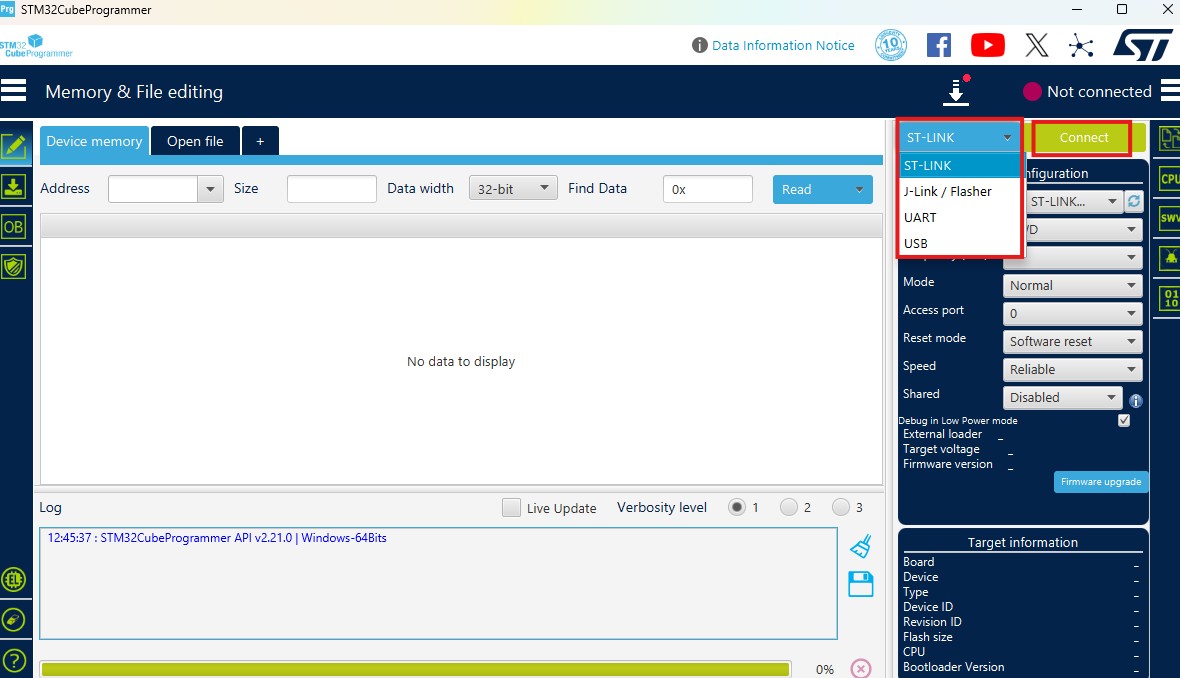
Once installation completes, run the program and remember to connect your MCU via ST-Link. In addition to ST-Link, you can use J-Link, UART, or USB. Next, we press connect.
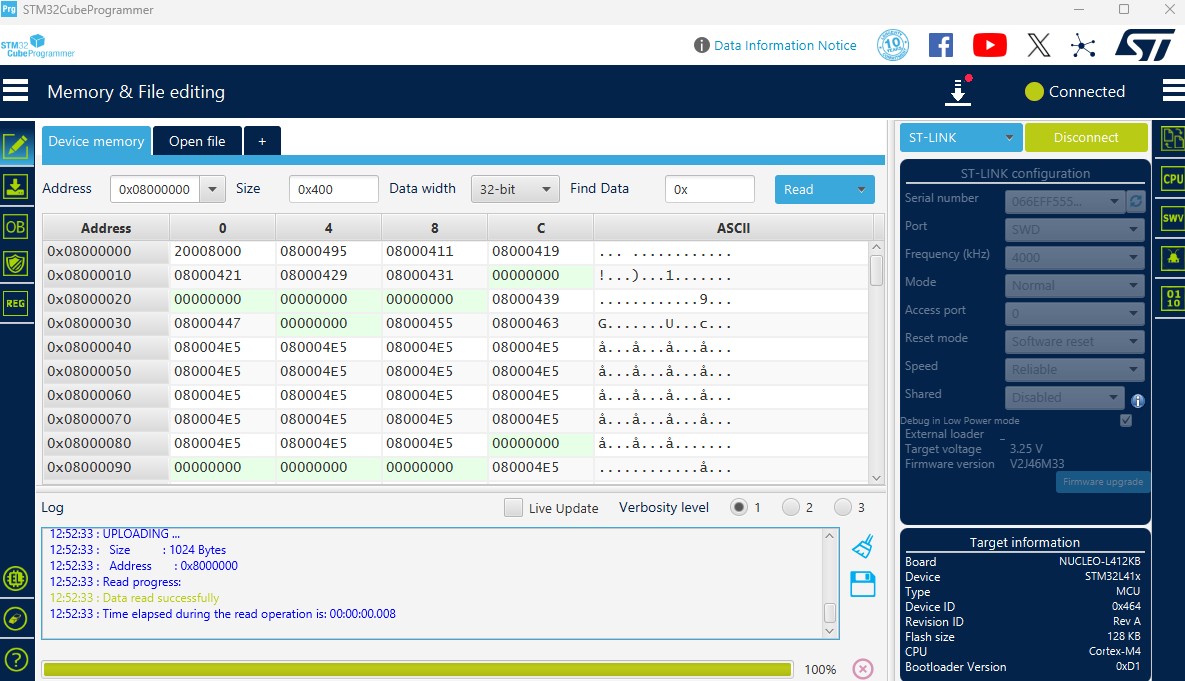
If everything goes well, you should see the device memory displayed on the screen.
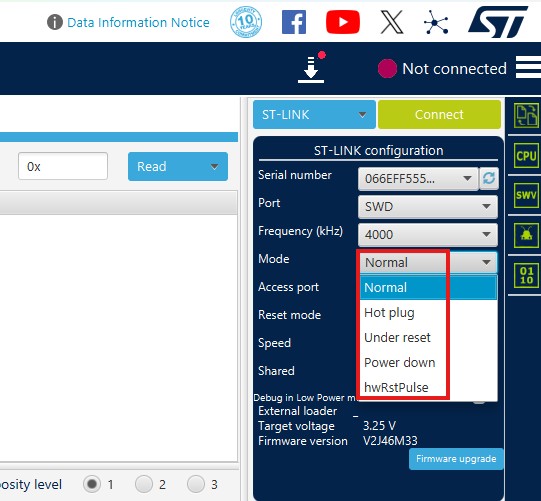
At this point, I want to get into detail about connection modes. I usually keep the normal mode, but other options could be helpful in some circumstances. In 'Hot plug' mode, the tool does not reset the MCU, so you can access all registers while the application is running. It is super helpful for debugging. I will show it a bit later.
Sometimes I cannot connect to the MCU in normal mode, for example, when it is in low-power mode. In those circumstances, I switch to under reset. In that case, the application will reset the MCU, and you can easily connect.
For Reset, there are also several options:
- Software Reset: resets all STM32 components except the Debug via the Cortex-M application interrupt and reset control register
- Hardware Reset. If you lose connection to the MCU, which was working fine before, you can perform a hardware reset via the nRST pin.
- Core reset
STM32CUbeProgrammer, Flashing the Application File and Option Bytes
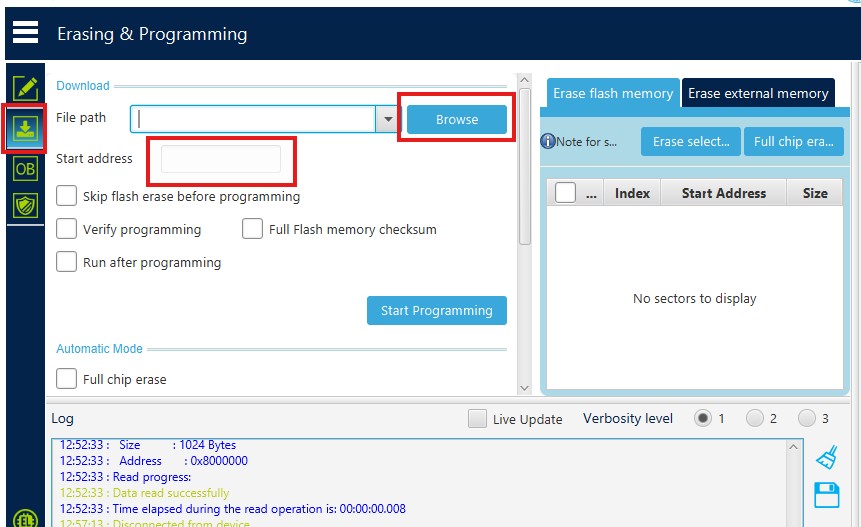
Next, let me explain how to flash the MCU with an application file. To do that, select Erasing & Programming on the right, then browse to the application file. If you browse to the *.elf, you can just press connect and press 'Start Programming.' For a *.bin binary file, it is vital to choose the start address. Usually, this value is set to 0x8000000, which corresponds to the beginning of flash memory. There are also various options, such as Run after programming and Full chip erase.
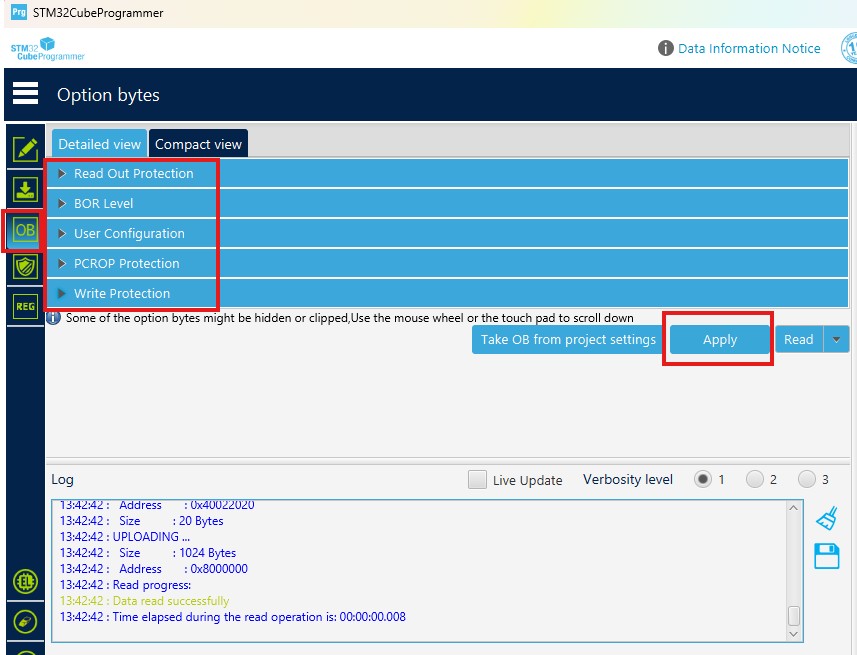
Another essential feature of the STM32CUbeProgrammer is configuring the option bytes. Option bytes in STM32 MCUs are special non-volatile configuration bits stored in Flash memory that define low-level device behavior. They are used to control critical features such as read-out protection (RDP), write protection, brown-out reset level, watchdog mode, boot configuration (BOOT0/BOOT1), and reset behavior. Option bytes are programmed separately from the main application code and typically require a reset to take effect, making them an essential mechanism for securing firmware and configuring how the MCU starts and operates at a system level. Once you configure the option bytes, press 'Apply' to apply the change.
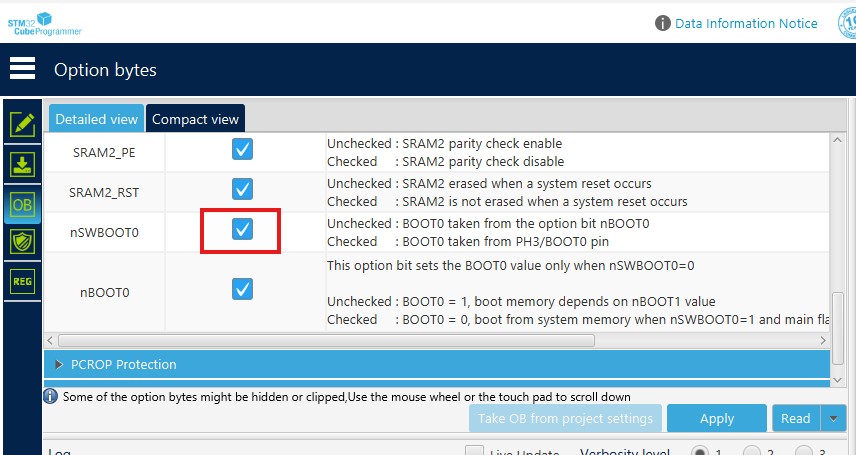
Sometimes I use that to configure the BOOT0 pin as a standard pin rather than a pin used to define the boot options.
STM32CubeProgrammer, Reading registers in real-time
This is the cool feature I use most when I run into serious trouble. For example, the code encounters a fault that prevents information from being extracted during debugging in the IDE. So, I connect via STM32CubeProgrammer (usually hot-plug to preserve register values).
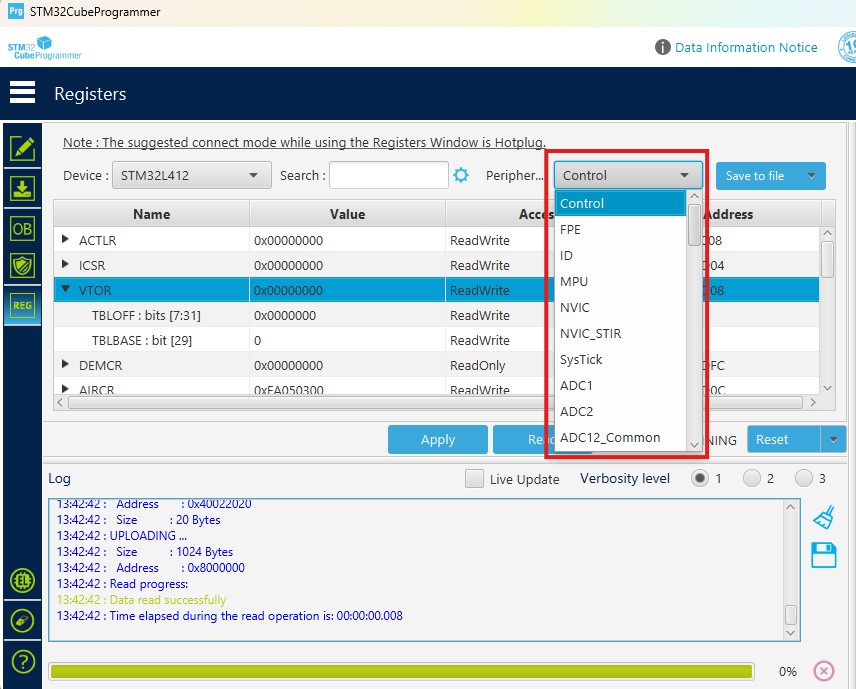
I press 'REG' on the left and select the MCU I am using. Also, you can press the RUN symbol to run the CPU
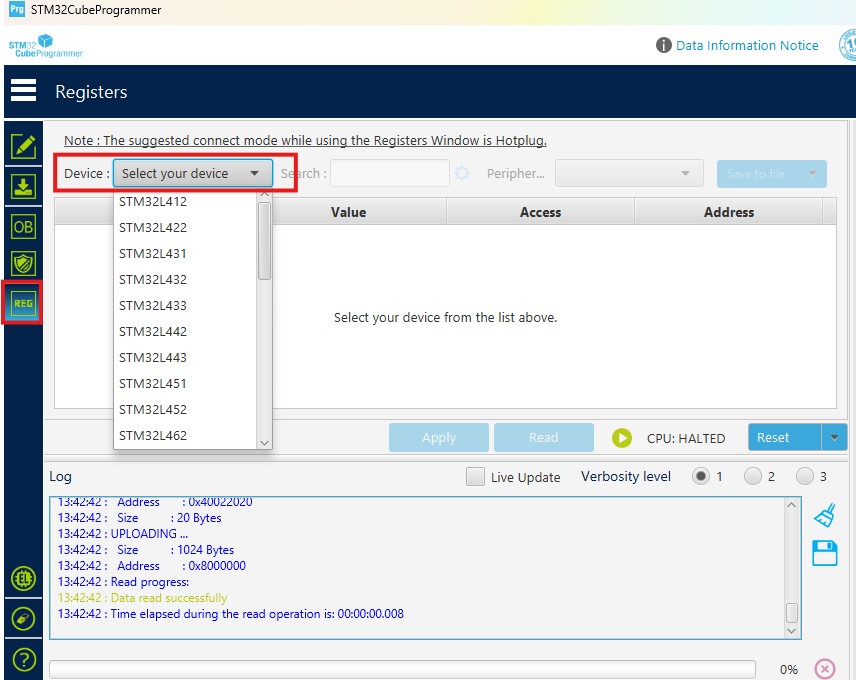
Then, you can select the peripheral and read registers. With the help of the reference manual, reading registers while the code is running can be a powerful debugging tool.
Conclusion
STM32CubeProgrammer is a powerful yet accessible tool that plays a key role in the STM32 development workflow. From flashing and erasing firmware to configuring option bytes and inspecting registers, it gives you complete control over your microcontroller throughout development. However, to use these features confidently and avoid common pitfalls, a solid understanding of STM32 fundamentals is essential.
If you are new to STM32 or want a structured, step-by-step learning path, my STM32 Programming Course for Beginners is designed to help you get started from scratch. The course covers core concepts, practical examples, and real projects, making tools like STM32CubeProgrammer easy to understand and use in your own applications.